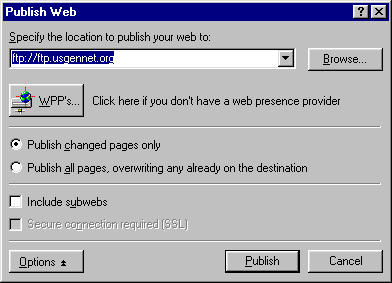
Publishing with Front Page 2000
created by Susan Ditmire for USGenWeb hosts on 5/18/2000
From the Menu, Choose: File
then: Publish Web
Notice that for some (unknown to me) reason, you need to type in ftp:// then the HostName/Address
(you will see ftp://ftp...)
Click on: Publish
Name = Account Name/User ID
Password = Account Password
(Be sure to use the same case as sent to you b is not equal to B)
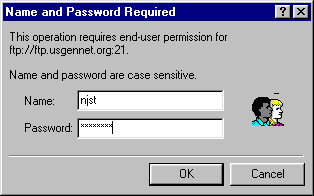
Click OK
If all went well,
You will see pages flying:
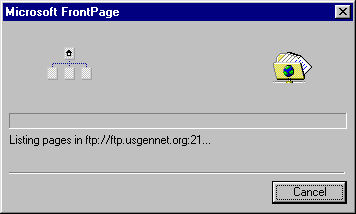
If not, the most likely error is mistyping your password (make sure your caps lock is turned off & watch the case of those letters.)
Be sure to read the next screens:
You may see a box that gives you the name of one of your files and says it was last updated on a specific date. - Do you want to replace?
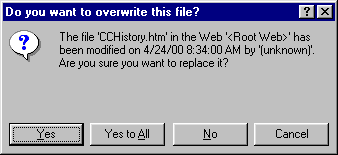
I believe that this happened, because the sites were moved and will not usually appear. It is a reminder to read the screens.
In that case, The answer is Yes (assuming that you have purposely changed the page).
Do Not click on - Yes to All !!!
You will most likely see the following dialog box.
The answer is No!
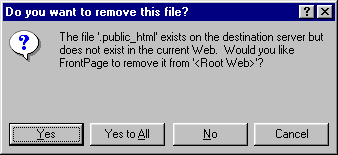
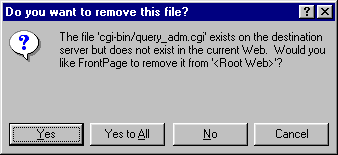
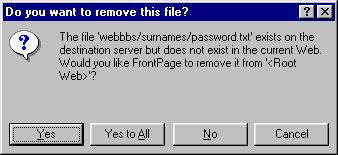
The answer is always No!
When you are done, you will see:
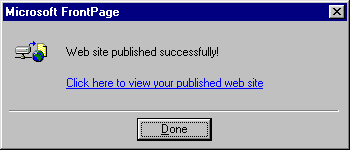
Congratulations!!!
You will have to ignore the Click here to view your published web site
It has to do with publishing directly to a url - not to an administered server.
(huh!) Trust me just ignore it and click Done.
Now, use your browser and go take a look at your site.
The good news is that the program will hold on to the publishing address as long as the program is open.
That means that if you publish and then see an error when you check on the page. You can easily correct then republish. You do have to go through all the No, No, No, No... business again.
The bad news is (same as above), the program will hold on to the publishing address as long as the program is open.
If you have multiple websites be sure to close all the way out of Front Page, before you publish another site. You can work on them at the same time and move back and forth between windows. But save all the corrections, then publish one. Close the program, then reopen and publish the second site. (I learned this the hard way, by overwriting my site one day. I had Cumberland County showing on Cape May County url.)